Chat and Harness mode
Chat is a native window for the CLI coding agents you run in back2vibing’s built-in terminal. It renders the agent’s conversation (markdown, code blocks, and compact tool-call inspectors) and types what you write in the composer into the agent. Chat is a Pro feature; creating workspaces stays free.
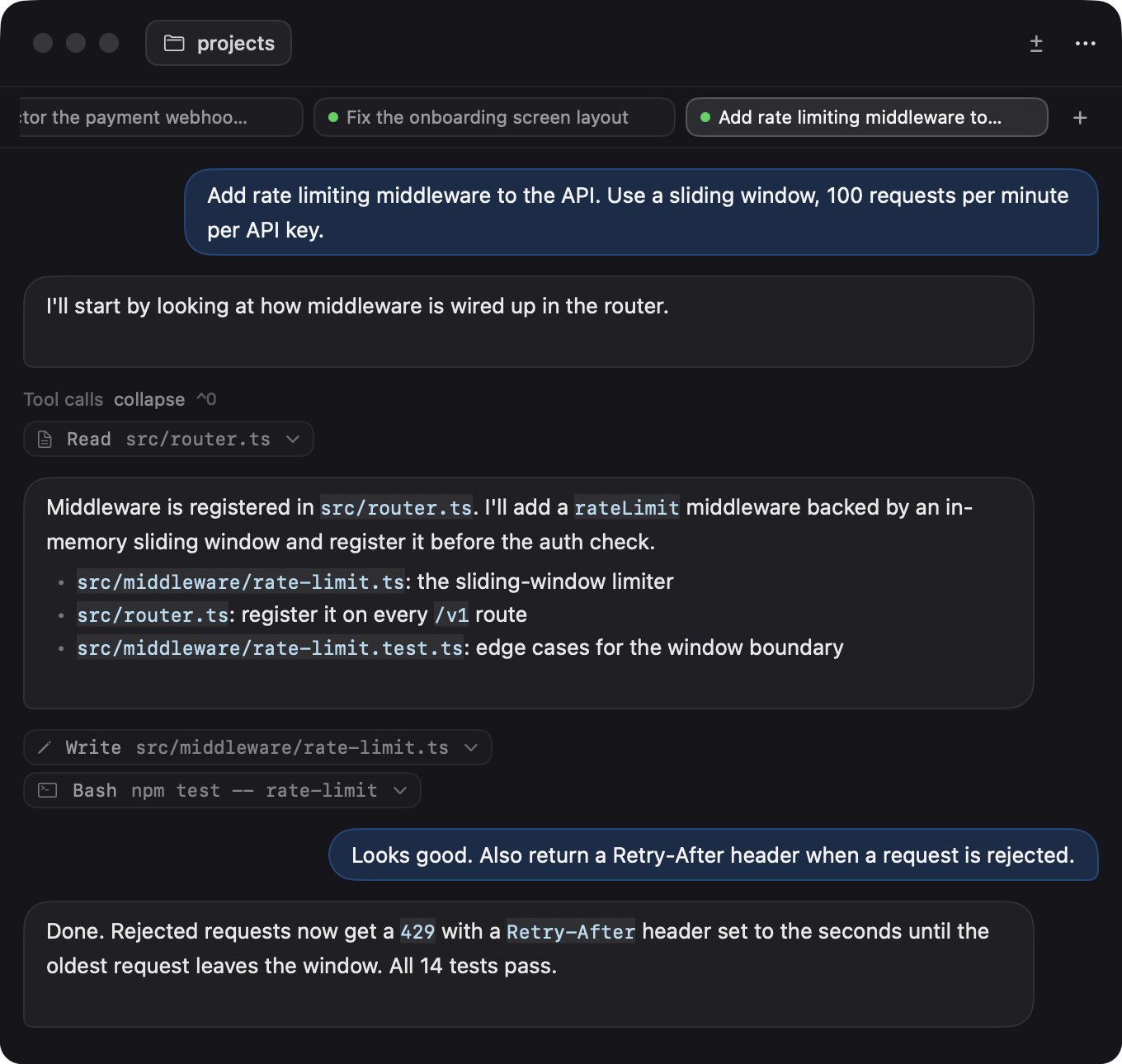
Open Chat
Section titled “Open Chat”- Click a session on the Session Rail.
- Click the back2vibing app icon to restore the last chat.
- Press the optional Chat palette shortcut. It has no default; set it in Settings → Shortcuts → Global, or run
b2v shortcuts set chat-palette <chord>. - With the rail’s quick-pick armed, press c to continue the highlighted agent in chat.
Start something new
Section titled “Start something new”| Keys | Action |
|---|---|
| ⌘T | New chat in the current workspace. An unsent draft is stashed; Esc restores it. |
| ⌘N | Workspace picker, with New workspace |
| ⌘P | Pick the agent |
| ⌥P | Pick the model. Your five most recent models per agent float to the top. |
| ⌘E | Pick the launch environment (local, or a remote host) |
| ⌥Y | Toggle Yolo (auto-approve) for this launch. Per launch, never remembered. |
Composer
Section titled “Composer”- Type @ to fuzzy-pick a file, edited files first. It becomes a file badge.
- Press ⌥D to dictate; press it again to stop.
- Enter sends.
Above the composer, agent chips show every agent in the workspace with its status, needs-you first. ⌘] / ⌘[ or ⌃Tab cycle through them.
Reply from the rail
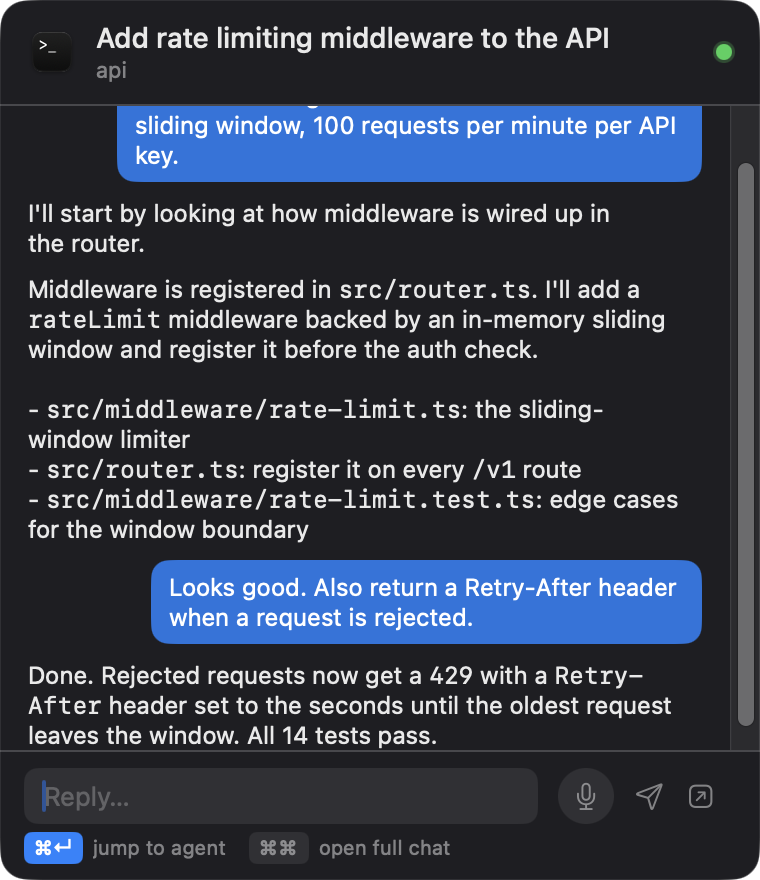
Section titled “Reply from the rail”You do not have to open Chat to answer. Read & reply on a Session Rail flyout expands it into the recent conversation with a composer and a mic. ⌘↵ jumps to the agent and double-tap ⌘ opens the full chat.
Rails, answers, and Git
Section titled “Rails, answers, and Git”- Changes (⌘I): browse changed files and a diff card; ⌘↵ or @ attaches a file to your message.
- Assets (⌘L): links, previews, and pull request status.
- Quick Answer: when an agent asks a multiple-choice question, answer inline above the composer with ⌘1–9 and Enter.
- Git: commit, push, create a pull request, and merge from the Git surface. Open it from the rail’s workspace menu, the Git badge, or m in quick-pick.
Compact, pop out, and size
Section titled “Compact, pop out, and size”⌘. compacts or expands the window. Pop out turns it into an always-on-top watch card with live status, the latest reply, and a steering composer. Resize with ⌘⌥←/→ (width) and ⌘⌥↑/↓ (height).
⌘K searches everywhere: this workspace’s sessions first, then actions, workspaces, and chat text.
Remote chat and resume
Section titled “Remote chat and resume”Pick a remote host with ⌘E and the agent runs over SSH inside back2vibing’s own terminal; ssh and sign-in prompts are answered there. See SSH Remote.
Agents running in the built-in terminal resume their own conversation after you quit, restart, or crash the app.
Harness mode
Section titled “Harness mode”Press ⌘J to switch between Chat and Harness. Harness shows the agent’s real CLI in an embedded Ghostty terminal that fills the window, so anything the agent’s terminal UI can do is available. The choice is remembered per session.
In Harness, ⌥J / ⌥K scroll by a third of a screen, and ⌘↑ / ⌘↓ jump to the top or bottom.
When an agent is blocked on a trust or login prompt, the rail flyout shows an amber Harness (⌘↵) action that opens it there.
Custom harnesses
Section titled “Custom harnesses”Press ⌘P and choose Add custom harness… to save any CLI command (for example aider --yes) next to the supported agents. Pick it later from the same list; ⌥E edits and ⌘⌫ deletes the highlighted one.
A custom harness has no chat adapter, so it runs as a plain terminal in Harness mode only: there is no Chat view and no ⌘J toggle. Its state on the rail (working, idle, or waiting for input) is inferred from what the terminal prints, so it is a best-effort signal rather than an exact one. Anything you type in the composer when you start it is sent to the terminal once it is running.
Keyboard reference
Section titled “Keyboard reference”| Keys | Action |
|---|---|
| ⌘K | Search everything |
| ⌘T | New chat in this workspace |
| ⌘N | Workspace picker |
| ⌘P / ⌥P | Agent / model picker |
| ⌘E | Environment picker |
| ⌥Y | Yolo for this launch |
| ⌥D | Dictation |
| ⌘] / ⌘[ , ⌃Tab | Next / previous agent chip |
| ⌘I / ⌘L | Changes / Assets rail |
| ⌃O | Expand or collapse tool calls |
| ⌘. | Compact or expand |
| ⌘⌥ arrows | Resize the window |
| ⌘J | Toggle Chat and Harness |
| ⌥J / ⌥K | Scroll in Harness |
| ⌘↑ / ⌘↓ | Top / bottom in Harness |
| Esc | Step back, then close |