Why agent notifications pile up
2026-11-14 · 4 min read
Three agents, two projects. Banners stack in the corner and time out while you are mid-thought. Where a click lands depends on the terminal and how the banner was made, and it cannot pick a tmux pane. A notification is an event. You need state, and a way back to the session.
- A banner says something happened once. It does not say what still needs you, or where.
- The Session Rail keeps a status per session until it changes. The free tier includes it.
- Pro returns you to the exact tab or pane. The free tier notifies but does not return.
How the pile forms
Each finish or question makes a banner. They stack, then vanish. Nothing says the session is still waiting, which terminal it was in, or that a second agent also finished while you read the first.
So you ignore them, or leave them unread in Notification Center. Either way you are back to staring at terminals.
State instead of events
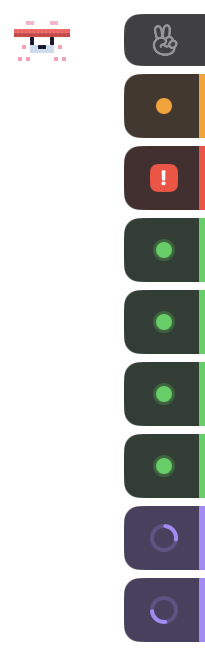
The Session Rail shows one tab per session. Each has a status color that stays until the session changes state. Nothing to dismiss, nothing that times out.
| Status | Meaning |
|---|---|
| Amber, pulsing | Needs you: a question or permission decision |
| Purple spinner | Working |
| Green dot | Ready: a new response is waiting |
| Red exclamation mark | Blocked or failed and not yet seen |
| No highlight | Idle |
Read it without opening anything
Hide the rail down to a line along the screen edge. It is cut into one segment per agent. Hover for a summary such as "2 need you, 1 working, 1 ready".
Completion and permission chimes are separate, so you can tell finished from stuck by ear.
Getting back to the session
With Pro, press Command+Return from anywhere to jump to the next agent that needs you. It goes to the exact tab or pane, including tmux panes. Keep pressing it as the queue drains.
Flyouts appear beside the session's tab. For a question they list the options and a field for your own answer. Double-tap Command for a quick reply. Read & reply opens the recent conversation with a composer and a mic. The notification Inbox and Recents hold what you missed.
Quiet when you need it
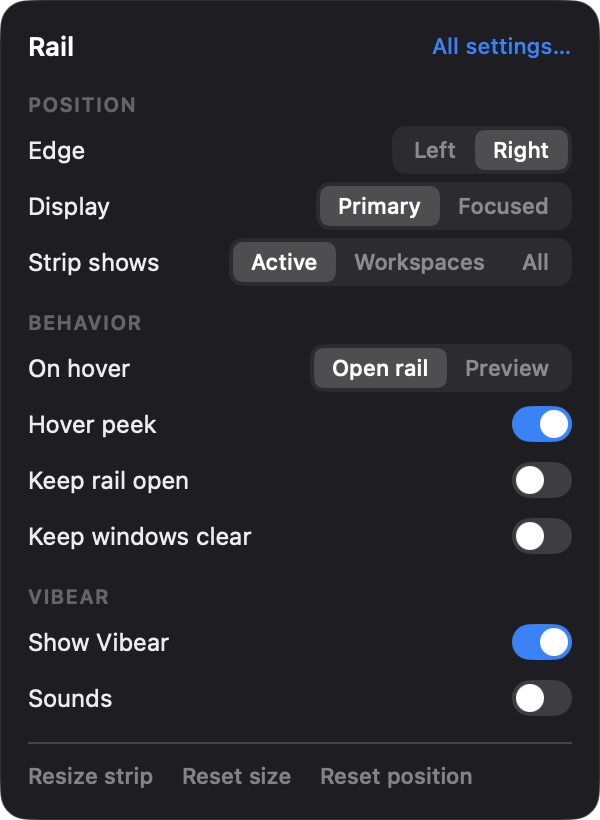
Mute sounds in the menu bar tray silences chimes only. Quiet mode hides overlays while you share your screen. Pause back2vibing stops everything, sounds included.
Alerts also wait while a dictation app you selected is using the microphone. back2vibing never moves focus on its own.
Free and Pro
Free: the rail and Dock with live status, the completion sound, macOS notifications, and basic alert controls. Pro: the Inbox and flyouts, returning to a session (app, tab, or pane), and peek.
New installs include a 14-day Pro trial. Pro is a one-time $19 lifetime license.
Try back2vibing
Every new install includes a 14-day Pro trial, and Pro is a one-time $19 lifetime license.
$
brew tap builtby-win/back2vibing https://github.com/builtby-win/back2vibing && brew install --cask back2vibing Install via Homebrew macOS
Frequently asked questions
Why do agent notifications pile up?
Banners are one-off events. They stack, time out, and say nothing about which session or terminal they came from.
What does the rail show that notifications do not?
A status per session that stays until it changes: amber for needs you, purple for working, green for ready, red for blocked.
Can I see status without opening a window?
Yes. Hide the rail to a line with one colored segment per agent, and hover for a summary.
How do I silence it during a call or screen share?
Use Mute sounds for audio only, or Quiet mode to hide overlays while you share your screen. Pause back2vibing stops everything.
Is the status rail free?
Yes. The rail, completion sounds, and macOS notifications are on the free tier. The inbox, flyouts, and jumping back to a session are Pro, with a 14-day trial.